Zerg's Questionable Guide to Livestreaming - part 2
In the previous part, I revealed the plot twist that I used to do livestreaming and that I built my own tools to help manage it. But tools are part of a greater workflow, and the Streaming Dashboard is no different. So let's start at what we have.
It's always something...
A workflow can be as complicated as you make it, unlike what corporations will tell you... except for, like, rocket science and brain surgery. The same goes for livestreaming; you need something to show, something to send, and something to view it on. So let's list those three first:
Something to show
This would be what is on my screen: everything I want to share with the world. That would be Visual Studio, an app in development, images, etc. This also includes audio from different sources!
LISA was originally created to be my co-host during livestream events!

Something to send
Just because it is on the screen doesn't mean it magically appears on the web for everyone to see. You need a tool to transform everything that happens on the screen into a series of packets that the receiving media (ingestion) server can understand. We do this with an Encoder. Encoders themselves are... kinda simple. A frame (information of a certain time span containing image and/or audio data) goes in. A stream of compressed and encoded bytes comes out, which is what we send out.You can see this as a five-line highway being merged into one..
In order to control what is encoded, we use an app sitting on top of the encoder, like Open Broadcaster Software (OBS) in my case. It allows me to select what is and is not sent to the encoder and subsequently sent out to the web.
Something to view it on
You can't just send data over that known blue wire and out into the aether; you need to direct it somewhere. In the case of livestreaming, there are several platforms you could pick from. One of them is Twitch. Twitch had the idea that anyone could be their own "television show". Anyone can create an account, add a connection to a streaming app (like OBS) and go live.
All of this means we have three different areas of our broadcast to keep track of. And that... can be hard, especially when you're also trying to always interact with viewers. So I decided to make it easier, and that gave me something new to develop while live.
Connecting the pieces
We need to facilitate all three items on the list above, making it easy to change what viewers can see and do. Even though there are three items on the above list, we only need to connect to two services, one of which accessible on the local network: OBS and Twitch.
The general plan
The general idea was to create an Android app that I can run on my tablet to help manage my broadcast through both OBS and Twitch. One would switch scenes, sources and trigger "go-live", and the other would keep track of broadcast length, quality, chatters, and more. That means whipping out a .NET MAUI app! Technically, .NET MAUI is a cross-platform app, and it also technically supports Windows (it plainly supports Windows), but I don't have a proper distribution platform for it.
OBS and Twitch both have APIs that can be used to achieve my goal, but the technical details are a little different.
Connecting OBS
OBS is the entire reason we can even go live, sending out audio, video and who knows what else out into the vastness of the internet to entertain someone elsewhere. But OBS has a lot of buttons, inputs, outputs and post-processing options. Audio levels can be given gain, muted, lowered, raised and monitored. For just one audio source, that would be about nine to ten requests, not including the request to get one specific source. Video (or more generic graphical) sources can be even worse, with requests for sizing, visibility, opacity, post processing and plenty more.
OBS has an API, meaning developers and apps can talk to it. But it uses a different protocol compared to most APIs. Since OBS can push a lot of information over the wire to anyone who deigns to listen, it uses a Socket connection.
Socket connections miss some of the guardrails we get with the usual standard HTTP calls, but that gives us unparalleled sending and receiving speeds.
We'll dive into the details of OBS in part 3, I want to focus on the general overview first.
Connecting Twitch
When I first scoured the Twitch API docs, I was surprised to learn it actually supports three methods of communication: a WebHook, a WebSocket or a Conduit. I chose to make use the WebSocket.
With the WebSocket, I can register to different events, and have Twitch spam my app with all kinds of messages like: chat messages, people who subscribe, donations and plenty more things that might be of interest.
The challenge with a WebSocket is that you are responsible for its life. That sounds extreme, but it boils down to this:
There is ever only one Socket connection live.
The app has to manage event subscriptions, including lifetimes, subscribing to events, unsubscribing to event and process incoming messages.
Per incoming message, the WebSocket needs to actively check the size of the message and make sure it read the entire thing before handing it off elsewhere.
I will give a more detailed look of the implementation in either part 3 or 4.
So what does this all get us?
It gets us an app that is getting battered by hundreds of messages at a time and needs to send out its own messages and command to Twitch and OBS, and all through a nice-looking interface. Like this:
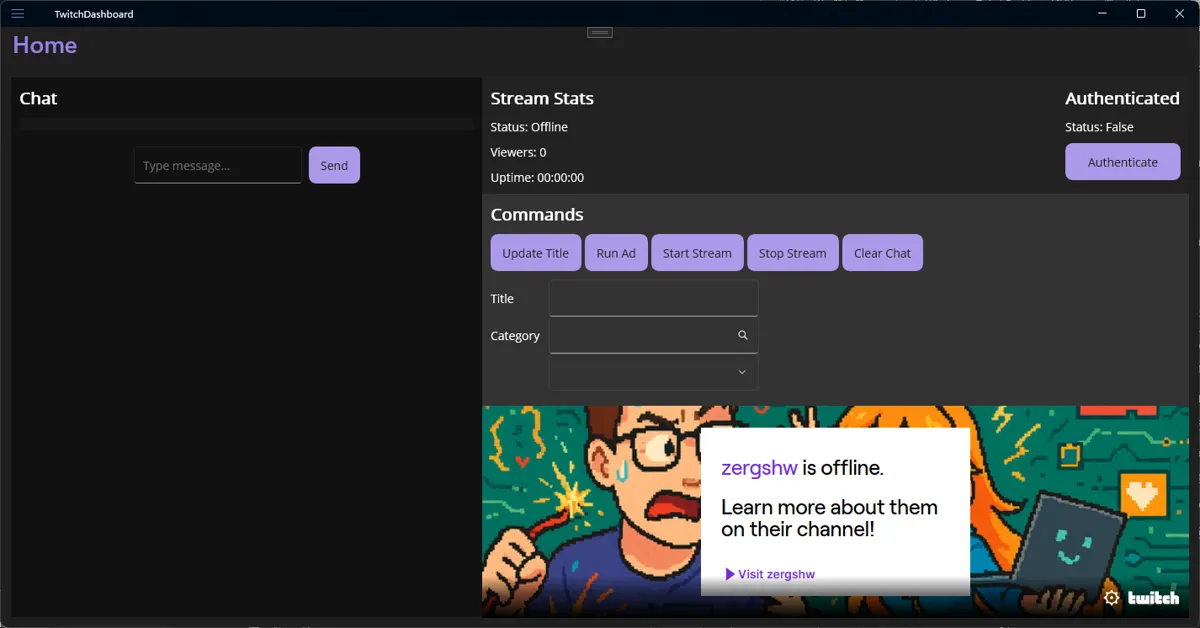
Now that we have the general gist of the components, next time we can dive into the tech that binds it all together! So stay tuned for the next part!
 What did you think?

