The sound of music - and a cursed file to go with it
Did you know I like to sing? It's true! Every night I put on my headphones, turn up the sidetones (so I can hear myself), pick a song and commit psychological warfare on my family and neighbors (sorry — not sorry).
The story of a song
I recently bumped into one of the many AI tools out there (again). This one was called Suno. Suno is a music generator that uses prompt guidance for both music style and lyrics. So with the power of words (and potentially a thesaurus), we can craft whatever song we like (within reason).
Other than singing, I like stories, epic tales of myths and legends. So I wrote myself an "end times" story, featuring a host of pantheons from across the world and throughout history. I wrote some very messy lyrics and collaborated with ChatGPT to help lean it up a little. Then I put the theme and lyrics into Suno and boom — a song, downloadable as an MP3 file.
Learning a song
We have our epic song! Booming voices, drums, real apocalyptic stuff. But an almost 7-minute song is pretty hard to learn, especially since it follows more of a story with many different actors and patterns.
Even though we have our lyrics, it's a little annoying to scroll through a text file by hand. And it is not practical to really do this on your phone. So to recap: I want to listen to my music and have the lyrics in one place. Basically: I need a karaoke machine! 
Music and Lyrics - all in one neat package
Because I rarely do things the easy way, I decided to try my hand at something I have been wanting to do for ages now (but couldn't really find a good use-case for in the past): creating a custom container format. A container format is the general shape of a file, dictating what things go where in what order. And the name of this new format? ZTSL, standing for: "Zerg's Tech Song and Lyrics".
A ZTSL file has 3 parts to it. (Let the tiny dragon below be your guide):
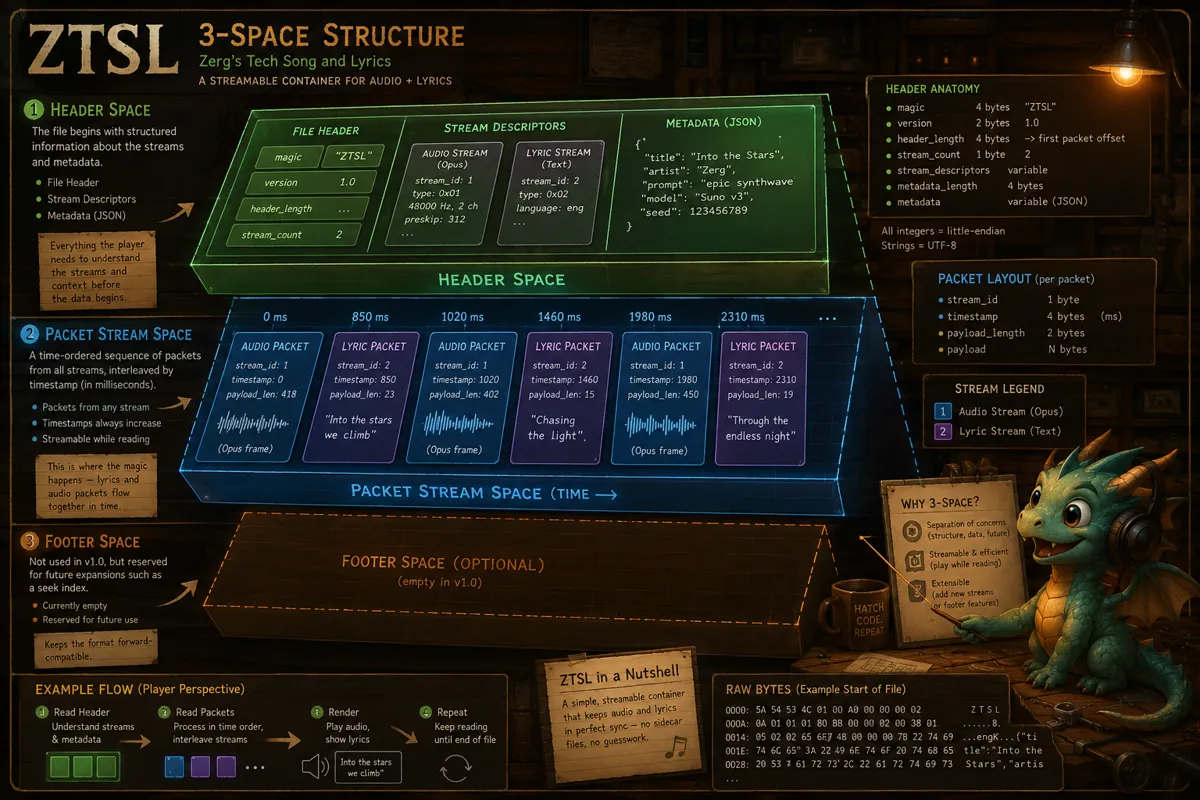
The three parts are: the Header, the Packet space, and the Footer.
Header
The Header is the general description of the file. It provides information like name, version, creation date, what "streams" are hiding inside this file, and optional metadata (things like "song title", "artist" and "my hidden chocolate recipe"). The Header space informs any player (with a .ZTSL reader) how and when to start reading the packets of data inside the file.
Packet space
Packets... a nice word but not a good candidate to score points with at Scrabble. A packet is a bit of data of a certain length, and the length depends on the type of packet we are talking about; there are two flavors:
Audio packets
This is where the music lives, split into tiny bits of data that tell a speaker what kind of noise it should make.
Lyric packets
The text, together with a timestamp for a player to know when to show a certain line.
All packets, regardless of type, live together in the packet space: first a piece of audio, then a piece of lyric, then audio, then lyric, etc. This is called "interleaving", and occurs naturally when writing both music packets and lyric packets at the same time (more or less).
Footer
In the Footer is... nothing. It's empty for now. But it is reserved space, nonetheless. Who knows when I get another brainwave?

But why believe my word when you can have proof?
Proof! Pictures! Sounds! Dancing hatchlings!
You know, instead of just reading this article and taking my word for it, you could go to the Hatchery's Karaoke booth and give it listen/read yourself! You can either follow the link or navigate to it from any page on the Hatchery!
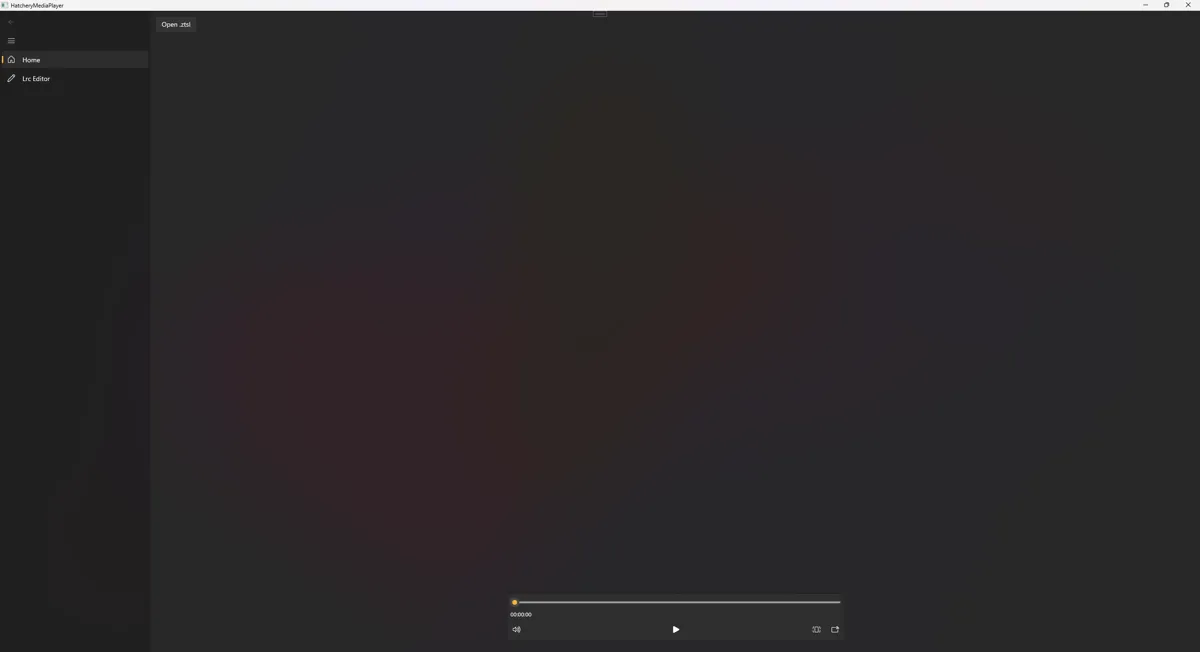
Welcome to the... very bare-bones media player! There is a button at the top to select a ZTSL file and a common Media Player component at the bottom to control playback (and yes, it does fully work). So let's see how it looks after I select a file.
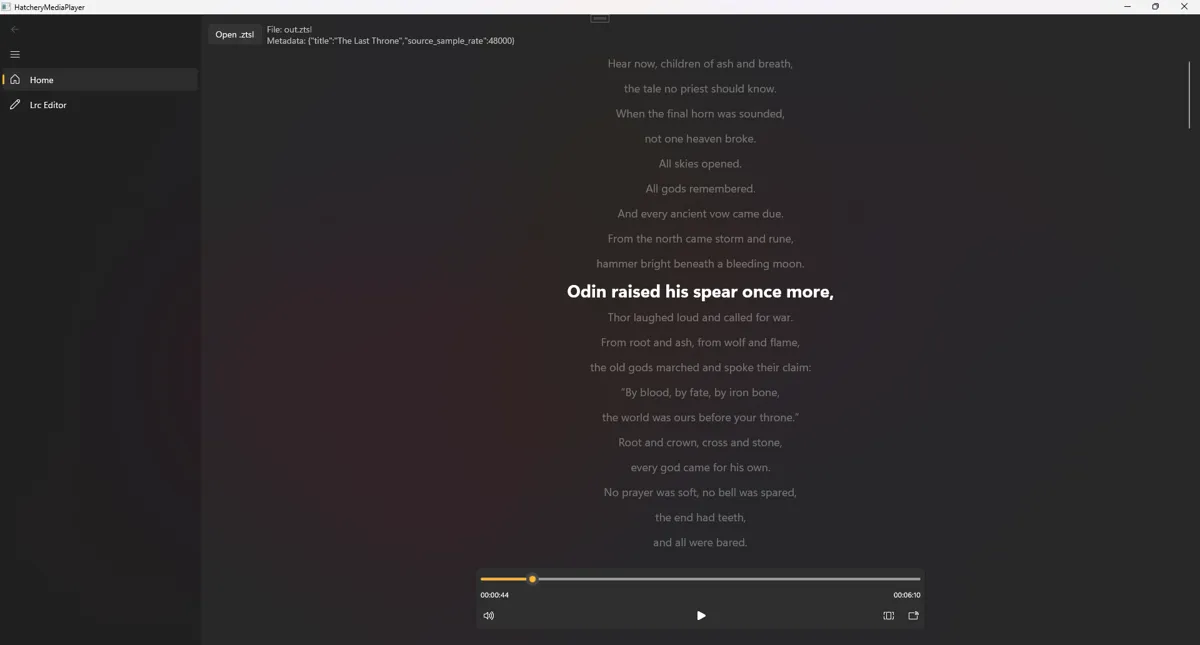
Now that looks almost Spotify-y. The lyrics are timestamped, so as the song plays and the Media Control scrolls through the song's length, the code will look at the next timestamp that needs to be made "active" or bold. It could probably do with nicer spacing between verses... but for now... meh, not really important when there are more pressing tasks to work on.
On the left you can spot the first tool needed to create a ZTSL, the LRC Editor.
The LRC Editor
Of course, lines of text are not magically aligned to fit the music. I did that... by hand. In order to make life easier, I made a little tool to help me.
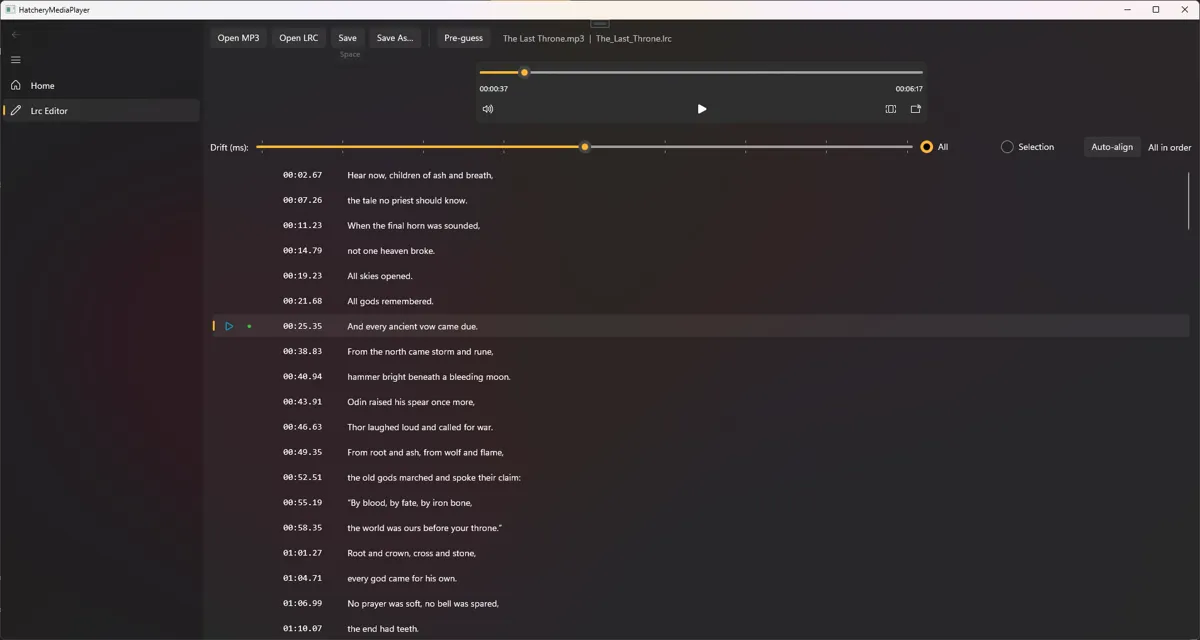
From the top: I can select an MP3 file, loaded by the player at the top. And I select an LRC file, the text and timestamps handled by the list below the player. In between the two sits a general time-slider, capable of moving either all or a selection of lyrics up and down the timeline.
The workflow is pretty simple.
Load the song and lyrics.
Listen and check if a line is activated at the right time.
Press the spacebar to correct and re-stamp the lyric line with the time the player specifies.
Repeat.
It is a manual job... but someone has to do it. When it's done, we press "Save" or "Save As..." and we're done with the lyrics!
The birth of a ZTSL file
Now we have a song and we have lyrics vaguely aligned with the vocals. It's time to create the ZTSL file itself. Complexity differs based on the audio file we are working with. The encoder expects 48 kHz, 16-bit PCM, so if our source differs we decode and resample it — then Opus-encode it into the file. Then we make the call to actually write the file!
var audio = new AudioStreamDescriptor(AudioStreamId, channels, preskip, "");
var lyric = new LyricStreamDescriptor(LyricStreamId, "eng", "");

var metadata = JsonSerializer.Serialize(new
{
    title = Path.GetFileNameWithoutExtension(mp3File),
    source_sample_rate = sourceRate
});

var header = new FileHeader(
    new List<StreamDescriptor> { audio, lyric },
    metadata);

using (var outStream = File.Create(outFile))
{
    var writer = new ZTSLBinaryWriter(outStream);
    writer.WriteHeader(header);
    foreach (var p in ordered) writer.WritePacket(p);
}
Let me take you through this bit of code step by step:
We create both Audio- and Lyric Stream Descriptors and give them a unique, arbitrary number.
Stream Descriptors inform a player on how to read the packets inside packet space and to what Stream a packet belongs to.We generate (optional) metadata.
In this case, the title of our song and the sample rate.We define a FileHeader object that sits at the top of our file (as written by the BinaryWriter).
The first space of our file! See the image at the start of the article for a visual breakdown!We create a new file (with a name we specified outside this isolated block of code).
We use the provided ZTSL Binary Writer to write our Header and packets to the newly created file.
Note here that the order in which we call 'WriteHeader' and `WritePacket`, it is vital we don't mix these around! Binary writers write sequentially, meaning: it writes data in the same order you present it!
There is still more, like the custom player controls for the Hatchery; but that is another article on its own! In the mean time, how about I share the SPECS of the ZTSL with everyone?
GitHub -> ZTSL
GitHub -> ZTSL Core + Player control
If you follow the Core or Player packages to NuGet, it will also automatically install the ZTSL package itself.
So now we come to the end of this article! I hope you enjoyed the madness as much as I did. Getting familiar with the quirks of audio, magic strings and descriptor shenanigans was quite the headscratcher at times but I am happy to have completed this experiment! The next article will dive into the optimization strategies I had to figure out when it came to implementing the Player into the Hatchery, so keep an eye out on that one!
Thanks for reading! Catch you next time and don't forget to subscribe to the newsletter down below! and while you're down there, why not leave a reaction, too?
 What did you think?


A seven-minute apocalyptic banger with multiple actors deserves a karaoke machine, not thumb-crippling text-scrolling — build that synchronized-lyrics beast NOW, I am SO here for this!!!